Wednesday, July 30, 2008

Install OS without Floppy orCdDrive

http://unetbootin.sourceforge.net/

Introduction

UNetbootin allows for the installation of various Linux/BSD distributions to a partition or USB drive, so it's no different from a standard install, only it doesn't need a CD. It can create a dual-boot install, or replace the existing OS entirely.

Requirements

  • Microsoft Windows 2000-Vista, or Linux, or a USB Drive.
  • A broadband internet connection to download the distribution packages (unless installing from pre-downloaded media, see below)
  • Spare hard drive space to install the OS in (varies depending on distribution)

Features

UNetbootin can install to your local hard disk or make a bootable liveUSB drive. It can also load floppy/hard disk images, or kernel/initrds, or (some) ISO (CD image) files, for installing other distributions.


See also: http://marc.herbert.free.fr/linux/win2linstall.html

Wednesday, July 23, 2008

Make Wine Applications look better

Make WINE Apps Look Better

How to Make WINE Apps Look Better
By Dan "quandar" Rise


Introduction:
Well, we all know if you leave WINE at its general configuration it is quite ugly, and if you use the .msstyle option in winecfg it makes everything slow, and its buggy at best. This guide is not set out to perfectly replicate your GTK theme, but hopefully make it blend.
First this guide will assume you have a fully functioning WINE setup. If you have that then lets get on with it, pick these apps (that we will use WINE to run) up.

Apps You Will Need:
Install Your Apps:
This step is fairly simple enough, unzip both of those ZIPs to folders and run the Setup.exe on both of them. Basicaly press agree, next, next, you know, Windows style *wink*.

DisplaySet / Fonts:
Open Nautilus, and press CTRL+L and type ~/.wine and go from your root windows folder (on mine it is "drive_c") and Program Files > DisplaySet, and open DisplaySet.exe. And switch all your font settings to your fonts in you System > Preferences > Font menu.


3DCC / Colours:
Navigate to ~/.wine//home/quandar/.wine/drive_c/Program Files/JaSMiN Co/3D Color Changer 4 and open Js3Dcc.exe with WINE. Okay, as a base for making a similar theme download a 3DCC pack from this site. Basically after this point install it in 3DCC and modify your colours accordingly using the RGB section under the example window for a perfect match. Keep in mind don't use the capture eyedropper feature, it generally is buggy going again anything outside the WINE window.
P.S. I chose Inspire Orange.

source: http://ubuntuforums.org/showthread.php?t=142741

Install Exact Audio Copy (EAC) under WINE


source: http://ubuntuforums.org/showthread.php?t=142784

Run Exact Audio Copy (EAC) on Linux

Introduction
Hands down, it is often agreed that EAC is the best CD ripper out there. And it was one of the things I took for granted when I switched. So basically, I set out to use it using WINE, and really, its just as fast, and runs perfectly, no problems in any feature from what I can see.


(If you want to make WINE look better without msstyles read this guide.)

Configuring WINE: Part I
Open your terminal in type in:
Code:
winecfg
And go to the "Drives" tab, and press the "Autodetect..." button.
It should scan for drives, and find a handful of them. Find /media/cdrom drives, if you have more than one then apply this step to all of them. Click on the drive letter ( in my case E: ) and press the "Show Advanced" button, and then select the "Type" of the drive to be "CD-ROM", apply to every drive that is a CD drive, and press "OK".

Installing EAC
Download the installer for Exact Audio Copy, then double-click eac-0.95b4.exe on the downloaded file and simply install like any other app.

Configuring WINE: Part II
Go into your terminal and type:
Code:
winecfg
and in the Applications tab, press the "Add Applcation" button and browse to EAC.exe, and click on it and select a NT operating system from the Windows select box (those being NT/2000/XP), and press "OK".
As it launches cancel the wizard, and press F9, and under the "Interface" tab, select "Native Win32 Interface for NT/2000/XP". Press "OK", and restart the app. Put a CD in your drive, and hopefully all will go well.
You should now be able to simply launch by using
Code:
wine ~/.wine/drive_c/Program\ Files/Exact\ Audio\ Copy/EAC.exe
in your favorite terminal.

Tuesday, July 22, 2008

February 2nd, 2008

Someone asked me this recently. I don’t have just one answer. I compiled a list of things I thought of and emailed it to my friend…then I thought I would post it here for future reference. Feel free to add to the list! There is also a forums thread on the same topic, that I remembered as I complied my thoughts, so I stole some of the ideas posted there.

1. Upgrade to the newest version legally and without paying money
2. Have the latest version of the operating system run faster than the previous version on the same hardware
3. Easily install and run different graphical interfaces if I don’t like the default setup
4. Install twenty programs with one command
5. Have the system automatically update all my installed programs for me.
6. Install the same copy of my OS (Ubuntu) on multiple computers without worrying about license restrictions or activation keys
7. Give away copies of the operating system and other programs that run on it without breaking any laws, governmental or ethical or moral, because it was all intended to be used this way
8. Have full control over my computer hardware and know that there are no secret back doors in my software, put there by malicious software companies or governments
9. Run without using a virus scanner, adware/spyware protection, and not reboot my computer for months, even when I do keep up with all of the latest security updates
10. Run my computer without needing to defragment my hard drive, ever
11. Try out software, decide I don’t like it, uninstall it, and know that it didn’t leave little bits of stuff in a registry that can build up and slow down my machine
12. Make a major mistake that requires a complete reinstallation and be able to do it in less than an hour, because I put all of my data on a separate partition from the operating system and program files
13. Boot into a desktop with flash and effects as cool as Windows Vista on a three year old computer…in less than 40 seconds, including the time it takes me to type my username and password to login
14. Customize anything I want, legally, including my favorite programs. I can even track down the software developers to ask them questions, contribute ideas, and get involved in the actual design/software writing process if I want to
15. Have 4+ word processor windows open working on papers, listen to music, play with flashy desktop effects, have contact with a largely happy community and have firefox, instant messaging, and email clients all open at the same time, without ever having had to beg someone for a code to make my os work, and without the system running so slow it is useless
16. Use the command “dpkg –get-selections > pkg.list” to make a full, detailed list of all software I have installed, backup my /etc and /home directories on a separate partition, and you are able to recover your system any time, easily
17. Run multiple desktops simultaneously, or even allow multiple users to log in and use the computer simultaneously
18. Resize a hard disk partition without having to delete it and without losing the data on it
19. Use the same hardware for more than 5 years before it really needs to be replaced…I have some hardware that is nearly 10 years old, running Linux, and still useful
20. Browse the web while the OS is being installed!
21. Use almost any hardware and have a driver for it included with the operating system…eliminating the need to scour the internet to find the hardware manufacturer’s website to locate one
22. Get the source code for almost anything, including the OS kernel and most of my applications

source:

http://matthewhelmke.net/wordpress/2008/02/02/what-is-the-coolest-thing-you-can-do-using-linux-that-you-can-t-do-with-windows-or-on-a-mac/

Comment:

great list

I just love X11Forwarding
ssh -X -C1 mydesktopIP -l username
means I can run any app on my new EeePC that’s installed on my desktop and it will open/save on my desktop.
Don’t even type a password if you use "ssh-keygen -t rsa". So if I lose my laptop I wont lose any important data.

Disabling Compiz

As I keep having freezes and lockups I try to disable Compiz:

source: http://www.ubuntu1501.com/2008/04/stop-compiz-fusion-from-loading.html

Stop Compiz-Fusion From Loading Automatically

This guide will show you how to stop Compiz-Fusion from loading automatically on startup in Hardy Heron and how to setup a shortcut for launching Compiz when you want.

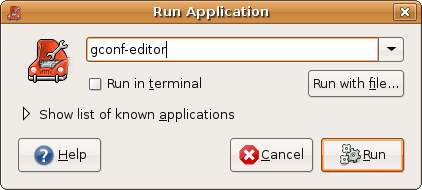
Step 1: Run gconf-edit
Start Run Application by pressing Alt+F2

Screenshot-Run Application

Enter gconf-editor into the box, hit enter


Step 2: Set Metacity as your default start up window manager
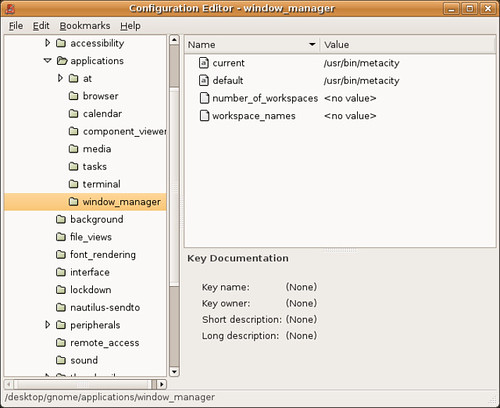
Once in gconf-editor navigate to desktop>gnome>applications>window_manager

Screenshot-Configuration Editor - window_manager

under current and default replace each instance of:
/usr/bin/compiz with /usr/bin/metacity
it should like this when you're done:

Screenshot-Configuration Editor - window_manager-1


Step 3: Create a shortcut for starting Compiz-Fusion
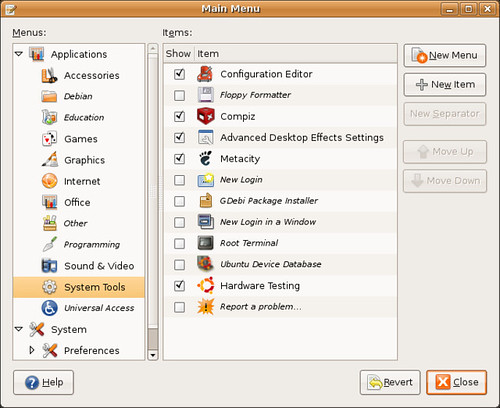
right click the Applications Places System Menu
select the Edit Menu option

Screenshot-Main Menu

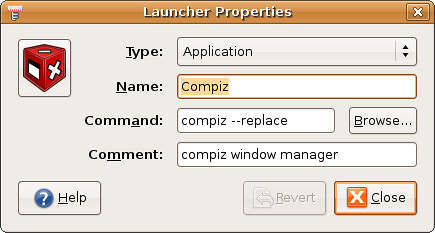
pick a location for your shortcut and select New Item box

Screenshot-Launcher Properties
Type: Application
Name: Compiz
Command: compiz --replace
COmment compiz window manager

Note 1:
Running
metacity --replace
will temporarily stop compiz, then running
compiz --replace
will enable it again. I use this to temporarily disable compiz

Note 2: For all users
Incase your using this to disable compiz system wide (eg, its causing crashes for all users) you can do this instead:

run `gksu gconf-editor`
change the same values (remembering when you set them to use "string")
right click them and select "default" and "manditory"
Now the change should affect all users.

Monday, July 21, 2008

Tool to scan and search your media and hard disks

CDCat is a graphical, multiplatform media catalog program which scans the directories/drives you specify and makes a list of the filesystem contents (including the tags of MP3 files) and stores the result in a gzipped XML file.

http://www.linuxappfinder.com/package/cdcat

uTorrent under Ubuntu in 3 Easy Steps

By: Marius Nestor, Linux Editor

These days, BitTorrent is the most popular P2P (peer-to-peer) file distribution protocol. Whether you want to share some files or you just want to get your hands on the latest Linux distributions, then you must use a BitTorrent client.
There are many BitTorrent clients for Linux, starting with the old and classical BitTorrent (yes, just like the protocol) and ending with the brand new Deluge, and somewhere in the middle we can enumerate very popular BitTorrent clients like Azureus, Transmission or rTorrent, each one providing very interesting features and functionality.

On the other hand (and this is what we're gonna talk about today), if you have "Windows friends", you must have heard them talking about that very tiny and light BitTorrent client called uTorrent. uTorrent is (of course) a BitTorrent client, with impressive features, like faster download speeds, intelligent configurable disk caching, trackerless support and lighter than any other P2P client out there. Now, you have Linux that is a Windows application, what do you do? Very simple, follow the instructions below!

Step 1 - Install Wine

Open a console and type:

CODE

sudo aptitude install wine


Step 2 - Create uTorrent executable script

CODE

sudo gedit /usr/bin/utorrent


A text editor will open, just paste in the following lines. Remember to leave a blank line after the code below!

CODE

#!/bin/sh
cd ~/utorrent/
if [ "$1" != "" ]; then
var="`echo $1 | sed 's////g'`"
var="Z:${var}"
wine utorrent.exe "$var"
else
wine utorrent.exe
fi


Save and close. This will create a script in your /usr/bin/ folder. You still need to make this script executable, so type the following command in a console:

CODE

sudo chmod a+x /usr/bin/utorrent


Now create a folder called utorrent in your home directory, then download the latest version (Standalone, NOT the installer) of the uTorrent application from Softpedia and place it in the folder you've just created.

Step 3 - Create Desktop Shortcut

In this final step, we're gonna create a desktop shortcut for the uTorrent script above, so you don't have to type any command at all.

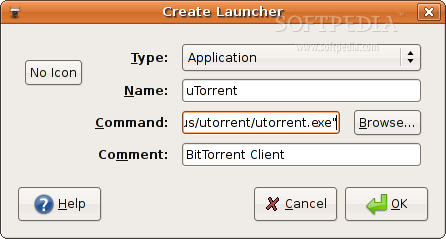
Right click on your desktop and go to "Create Launcher...". On the new launcher window, fill the fields as follows:

Type: Application
Name: uTorrent
Command: wine "/your-home-directory/utorrent/utorrent.exe"
Comment: BitTorrent Client

See screenshots below:

Create Launcher example

Note: Replace "your home directory" in the Command field above, with /home/your-name (e.g. /home/marius)

Choose a suitable icon, and click OK. Now all you have to do in order to enjoy uTorrent is to double click on the uTorrent icon on your desktop. Great thing is that you will also have a tray icon.

Blog Archive